Home / Blog / How to Build an Admin Dashboard Without Code for Founders
Answer first: A non-technical founder can build a working admin dashboard in minutes by describing what they need to see and do — user list, key metrics, a way to edit records, basic permissions — in plain English to an AI dashboard builder, rather than hiring a developer to wire together a custom dashboard from a BI tool and a spreadsheet. The build itself is the easy part; the harder part is deciding what actually belongs on it. I'd build this first because I don't want to wait on a developer every time I need to answer a simple question about my business.
An admin dashboard isn't a product feature — it's the internal dashboard you and your team use to run the business behind the product: look up a user, refund an order, flip a feature flag, see today's signups. Founders without an engineering team often assume this needs a developer. It doesn't; it needs a clear idea of what this business dashboard is actually for.
One pattern I've noticed is that founders often spend weeks planning the "perfect" admin dashboard instead of building the three or four screens they'll actually use every day. Keeping it simple almost always gets them to launch faster.
What should actually be on an admin dashboard?
Three things, in order of how often they get used, form the backbone of any admin dashboard layout: a searchable list of your core records, a small set of numbers that answer "is today normal," and the ability to edit or act on a record directly from the list — not just view it. In practice that usually breaks down like this:
- Contacts/Users — name, email, plan or status, signup date, and a way to search by any of them.
- Orders/Transactions — amount, status, the customer it's linked to, and a refund or cancel action.
- Support tickets/Activity — what happened, when, and who it's assigned to.
Anything beyond that — task reminders, audit logs, custom reporting — is a nice-to-have, not a requirement for v1.
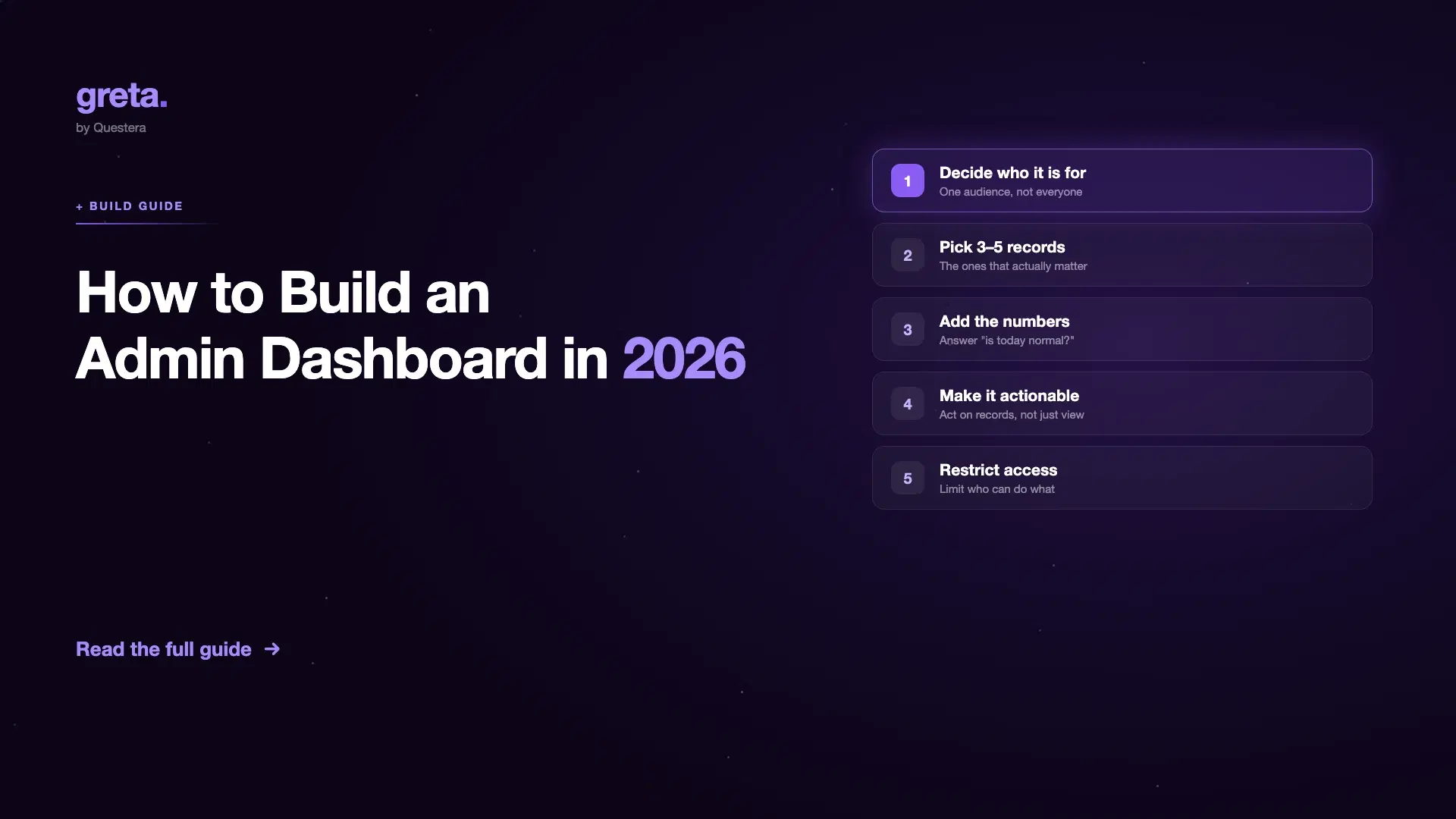
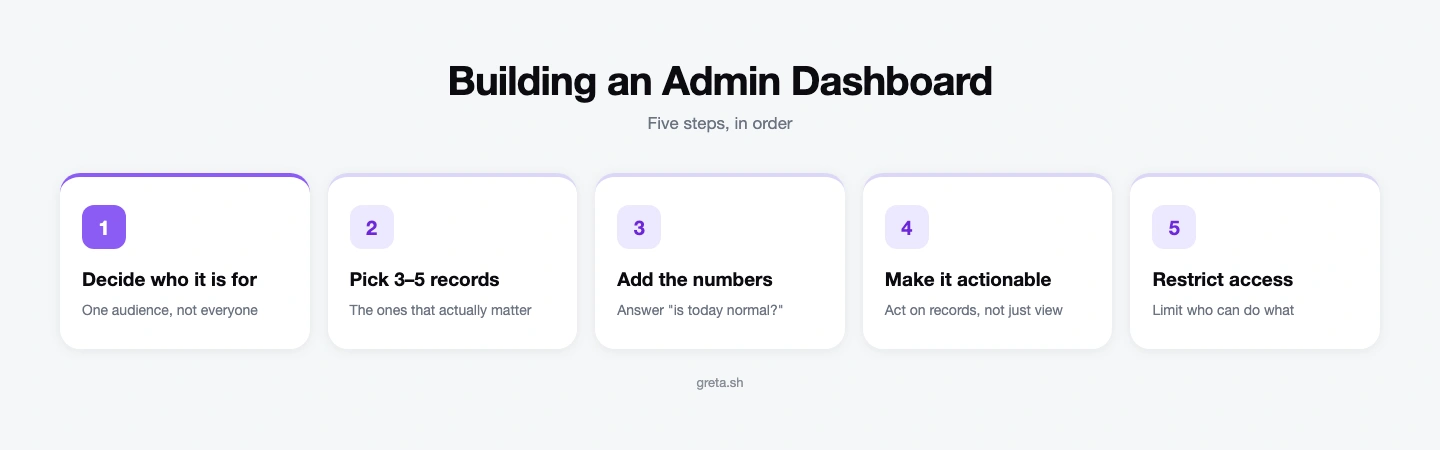
Step 1: Decide who the dashboard is actually for
A founder checking metrics needs different things than a support rep looking up a customer's account. The founder wants the signups number and today's errors front and center; the rep wants the account lookup and the refund button front and center. Trying to build one dashboard that serves both equally usually means neither person is happy with it — build for the person who'll open it every day, not for a hypothetical future admin, and add role-scoped views later if you genuinely need both.
Step 2: Pick the 3–5 records that matter most
Users, orders, subscriptions, support tickets — whatever your core entities are. If you're running a SaaS product, that's usually Users, Subscriptions, and Support Tickets. If there's a marketplace or e-commerce layer behind it, swap in Orders and Inventory. Whatever the five are, they should already exist as tables or objects in your database — an admin dashboard surfaces and acts on data that already exists, it doesn't invent a new source of truth. Resist building a dashboard for every table in your database on day one; start with the ones someone is currently checking manually.
Got an idea? Build it now!
Just start with a simple prompt. No coding required: Greta.sh turns your idea into a working app in minutes.
Step 3: Add the numbers that answer "is today normal?"
A handful of stat tiles at the top - sign-ups today, revenue this week, errors in the last 24 hours, do more work than an elaborate chart nobody reads. That's the difference between a busy business dashboard and a useful one. Founders check this daily; it should take five seconds to read, not require filtering or exporting anything.
Step 4: Make records actionable, not just visible
The dashboard earns its keep the moment someone can resolve a support issue or refund an order directly from it, instead of pinging an engineer to run a script. This is usually the difference between "a dashboard" and "an admin panel that actually saves time." A refund button next to the order, an "reset password" action next to the user, a "mark resolved" button next to the ticket - small actions like these are what get the dashboard opened every day instead of once a week.
Step 5: Restrict who can do what
Even a team of three benefits from separating "can view" from "can edit" from "can delete." Set this up before real customer data and real money are flowing through it — retrofitting permissions afterward, once support reps already have standing access to every customer's billing details, is far more painful than scoping it correctly from day one. Greta.sh's guide to role-based access covers the underlying patterns — admin/editor/viewer roles, row-level scoping — worth copying regardless of which tool you build the dashboard in.
Got an idea? Build it now!
Just start with a simple prompt. No coding required: Greta.sh turns your idea into a working app in minutes.
Admin dashboard vs. admin panel vs. BI tool — how do they compare?
| Approach | Can edit/act on records? | Setup time | Permissions | Cost |
| BI tool (Metabase) | No — view-only | 5–30 minutes (Cloud can be set up in minutes; self-hosted typically under an hour) | Workspace-level sharing, not row-level | Free (open source); Starter $100/mo |
| BI tool (Retool) | Yes, with extra developer setup | A few hours to a few days, depending on your database and workflows | Granular, but built by hand | Free plan; Team $12/mo per builder |
| Your app's existing admin panel | Depends on your codebase | Already built, if it exists | Whatever your codebase already supports | Free, if it exists |
| AI dashboard builder (e.g. Greta.sh) | Yes, out of the box | Live in under an hour | Built-in, role-based | Plans from $5, with tiers at $20 and $200 depending on usage |
Which dashboard builder should you actually use?
- A BI tool (Metabase, Retool) - strong for viewing data, weaker for taking action on it without extra setup.
- Your existing stack's admin panel - free if it exists, but usually not built for non-technical editing.
- An AI dashboard builder - describe the dashboard in plain English (which records, which numbers, what actions) and get a working admin panel with real editing and permissions, not just a read-only view. This is the fastest path for a founder without engineering time, and it's the same approach Greta.sh uses for its ready-made internal tools and dashboard templates. Greta.sh's current plans start at $5, with additional tiers at $20 and $200, depending on the level of usage and features required.
If you'd rather start from a template admin dashboard than a blank prompt, Greta.sh's dashboard templates are built for exactly that. And if your business dashboard is currently a patchwork of spreadsheets and BI tools, From SaaS Sprawl to Custom-Built Tools covers the exact moment teams decide to consolidate into one custom dashboard instead.
How to choose
- If you just need to see the numbers and nobody has to edit anything, a BI tool is enough on its own.
- If your app already has a built-in admin panel that covers your core records, use it - free is free, and you can layer a dashboard builder on top later if it starts to strain.
- If people who aren't developers need to both view and act on records, with permissions set up correctly from day one, an AI dashboard builder is the fastest path to a working custom dashboard that won't need a rebuild in six months.
Got an idea? Build it now!
Just start with a simple prompt. No coding required: Greta.sh turns your idea into a working app in minutes.
Common mistakes when building an admin dashboard
- Building a read-only dashboard when the job actually needed an admin panel — the value is in the actions (refund, edit, resolve), not just the numbers.
- Skipping permissions until "later" — more painful once real customer data and real refunds are already flowing through the tool.
- Recreating every table in your database as a dashboard tab instead of the 3–5 records people actually check daily — this is what turns a lightweight admin dashboard into a maintenance burden.
- Choosing a BI tool for a job that's actually an admin panel job — you'll be back looking for a way to edit records within a few weeks. If you're weighing whether to keep building and maintaining these tools yourselves as the team grows, Replacing the Internal Tools Team: Reality or Hype? is a fair look at where that trade-off actually lands.
Frequently asked questions
Can a non-technical founder really build an admin dashboard alone?
Yes — the skill required is knowing what the dashboard needs to show and do, not how to code it. Describing that in plain English to an AI app builder, or assembling it visually in a no-code tool, both work without engineering experience.
What's the difference between a dashboard and an admin panel?
A dashboard is typically read-only — numbers and lists for visibility. An admin panel lets you act on what you see (edit a record, refund an order). Most founders actually need the latter, even when they ask for "a dashboard."
What are some business dashboard examples for founders?
Common business dashboard examples include a signups-and-revenue overview, a support queue where a rep can resolve or refund a ticket directly, a subscription/churn view, and a lightweight sales pipeline. Each pairs a handful of key metrics with the ability to act on the underlying records — the difference between a read-only dashboard and a true admin panel.
What permissions should an admin dashboard have?
At minimum, separate who can only view records from who can edit or delete them, plus a top tier with full access to settings and billing. Role-based access — admin, editor, viewer — scoped to the records a person actually needs is the safest default, and it's far easier to set up before real customer data is in the system than to retrofit afterward.
How long does it take to build an admin dashboard without coding?
A basic version covering your core records, a few key metrics, and simple permissions can be live in under an hour with an AI dashboard builder; a BI-tool version usually takes longer because it wasn't built for editing records, only viewing them.
Can I add an admin dashboard to an app I've already built?
Yes — an admin dashboard doesn't need to live inside your main product's codebase. AI app builders and BI tools can both connect to an existing database and add a dashboard layer on top, as long as they can read, and ideally write, to your existing tables directly.
Do I need separate tools for metrics and for editing records?
Not necessarily — many BI tools only handle viewing, which is why teams end up stitching together a metrics tool and a separate admin panel. A single AI-built dashboard can usually handle both from one place.
Explore more
See Greta.sh's templates for internal tools and dashboards, read how a marketing agency 5x'd output using an internal dashboard built this way, or check Greta.sh for founders.
Last updated: August 12, 2026.
If you are still choosing between building the dashboard and buying a reporting tool, best BI and dashboard tools covers the six worth checking, and the dashboard review checklist is the eight checks that separate a chart that is wrong from one that is merely ugly.
When something does break, the bug report template is what turns 'the dashboard is broken' into a change an agent can act on, and the incident handoff template covers what to write down while it is happening.