Agent Mode: Building Complex Applications
What is Agent Mode and how do I use the toggle feature?
Learn about Agent Mode and how to use the toggle feature to switch between Agent Mode and Normal Mode.
What is Agent Mode and how do I use the toggle feature?
Agent Mode is a fundamental architectural upgrade to Greta.sh that transforms how your projects are processed. Unlike the previous approach where Greta.sh made quick AI calls for changes, Agent Mode implements a sophisticated multi-step process that:
- Deeply understands your requests and requirements
- Pre-processes and analyzes your entire project structure
- Performs quality checks before implementing changes
- Executes precise modifications with better accuracy
- Eliminates file limitations that previously constrained complex projects
How to Access and Use Agent Mode Toggle:
1. Access Project Settings
- Click on the Project Settings button in the top-right corner of your screen
- This will open the project settings panel
2. Locate Agent Mode Toggle
- Within the settings panel, look for the Agent Mode section
- You'll see a toggle switch clearly indicating the current status
- The display shows whether Agent Mode is currently Enabled or Disabled
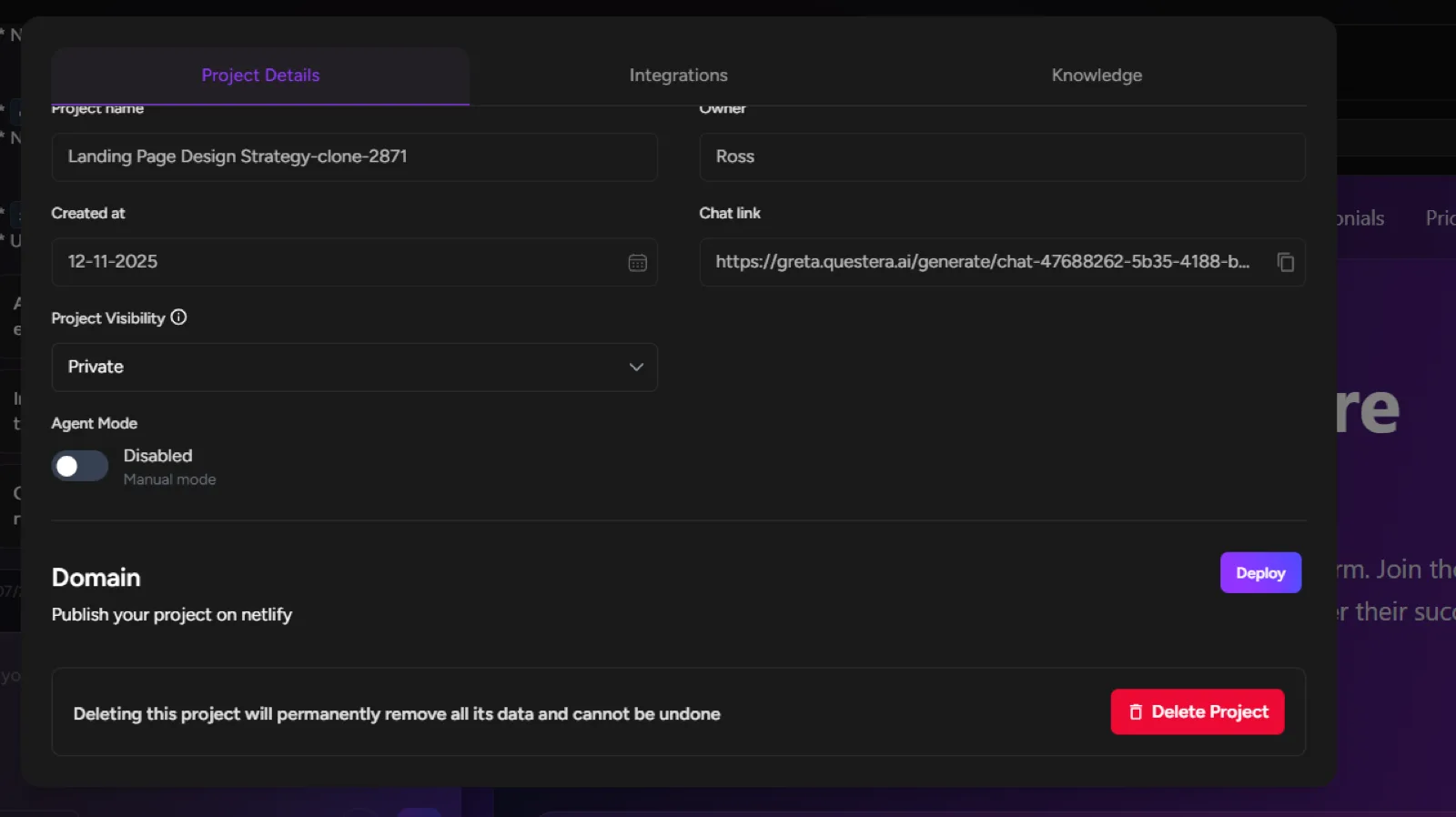
3. Toggle Agent Mode
- Click the toggle switch to turn Agent Mode ON or OFF
- Changes take effect immediately
- The status update is reflected in real-time
4. Monitor Status
- The interface clearly shows the current state at all times
- No need to save changes - modifications apply automatically
When to Use Agent Mode:
Enable Agent Mode For:
- Complex projects with multiple components
- Major feature additions requiring architectural changes
- Large-scale refactoring or code reorganization
- Projects where precision and quality are critical
Disable Agent Mode For:
- Simple text changes or minor styling adjustments
- Quick fixes and small tweaks
- Basic edits that don't require deep analysis
The toggle gives you complete control over your project's processing power, allowing you to optimize between comprehensive analysis and quick execution based on your specific needs!