Direct Editing: Saving Credits
How do I use the Code Editor to make changes without prompts?
Learn how to use the Code Editor to make changes to your project without using any prompts.
How do I use the Code Editor to make changes without prompts?
The Code Editor is a built-in feature that gives you direct access to your project's source code, allowing you to make precise changes without using prompts or spending credits. It's perfect for quick fixes, customizations, and hands-on coding adjustments.
Step-by-Step Guide:
1. Access Your Project
- Open the project you want to edit in Greta.sh
- You'll see the main interface with two panels:
- Left side: Code panel
- Right side: Preview panel
2. Open the Code Editor
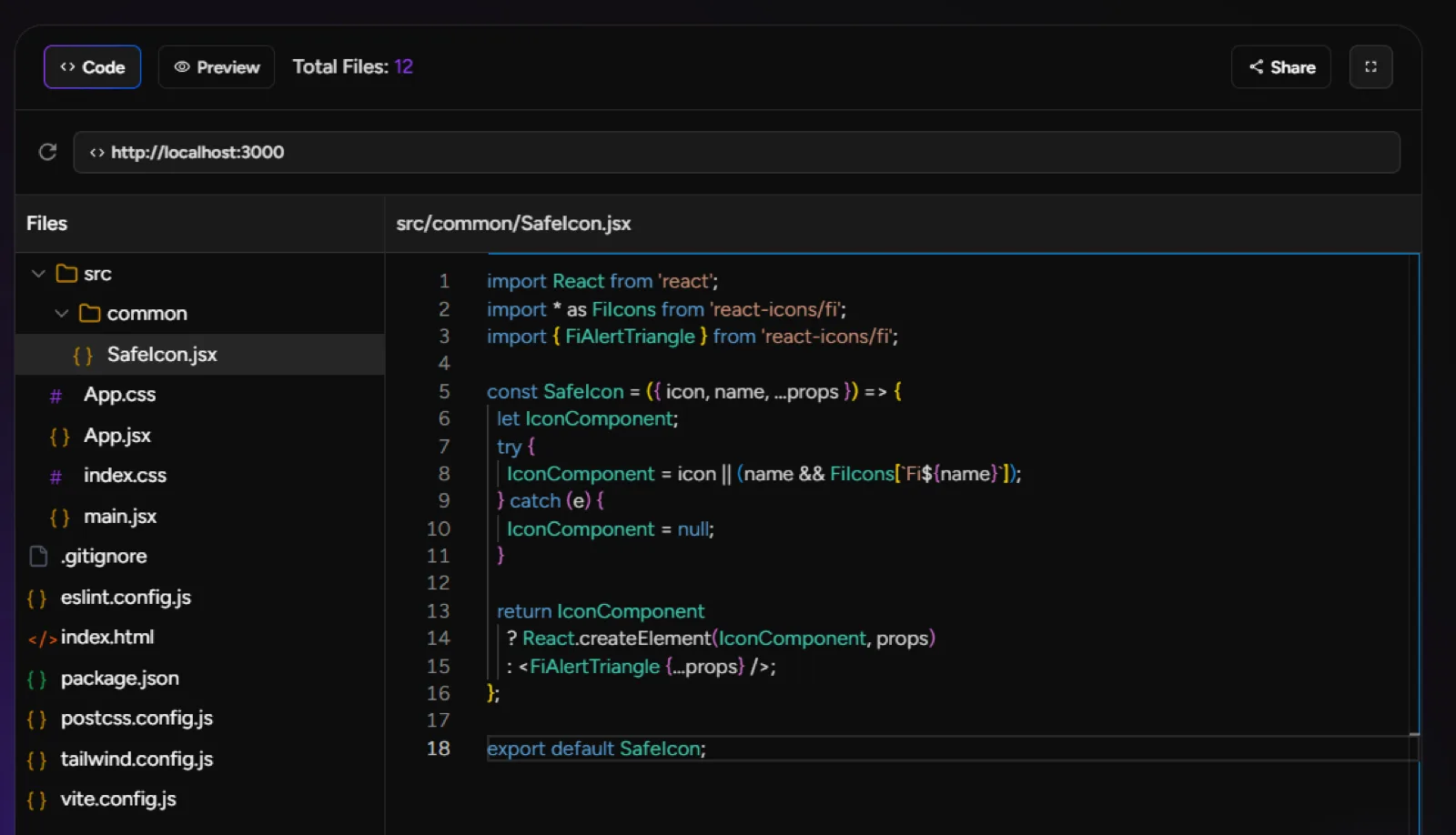
- Click on the "Code" tab on the left side of the screen
- This reveals the complete file structure of your project
- You'll see folders containing components, contexts, and other essential files
3. Navigate Project Files
- Browse through the file directory to find the component you want to edit
- Common locations include:
- components/ for reusable UI components
- pages/ for main page files
- styles/ for CSS and styling files
- Click on any file to open it in the editor
4. Make Direct Edits
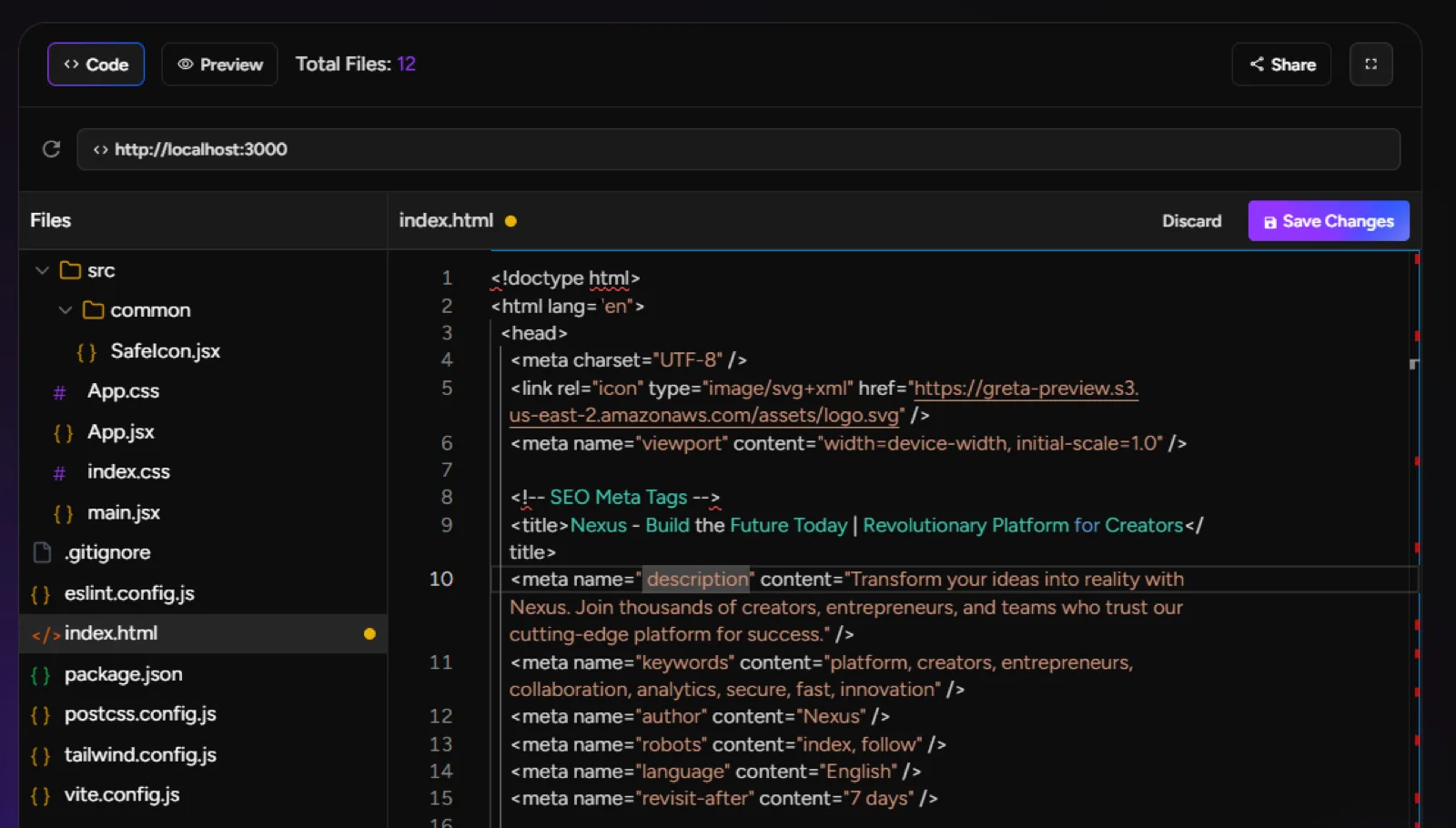
- Once a file is open, you can edit the code directly
- Example style change: Adjust widths, borders, padding, or colors
- Example functionality: Modify JavaScript logic or add new features
5. Save Your Changes
- After making edits, click the "Save Changes" button in the top-right corner
- Greta.sh will automatically process and apply your changes
- The preview panel will instantly reload to show your updated website
6. Toggle Display Preferences
- Use the Light/Dark Mode toggle to adjust the editor's appearance to your preference
- This doesn't affect your project, only the editor interface
Key Benefits:
- Credit-Free Editing: No prompts needed, no credits used
- Instant Preview: See changes immediately after saving
- Full Control: Make precise code-level adjustments
- Time Efficient: Quick fixes without back-and-forth chatting
- Learning Opportunity: Understand how your project is structured
Perfect For:
- Text content updates
- Style and color adjustments
- Layout tweaks (margins, padding, positioning)
- Small functional changes
- Code experiments and learning
The Code Editor puts you in the driver's seat for quick, precise changes while still maintaining all the power of AI-assisted development for larger tasks!