Adding Advanced Features
How do I use the Model Selector to switch between different AI models?
Learn how to use the Model Selector to switch between different AI models.
How do I use the Model Selector to switch between different AI models?
The Model Selector gives you complete control to choose the AI model that best fits your specific task—whether you need frontend design expertise, complex logic reasoning, or backend development capabilities. Each model has unique strengths and different credit costs.
Step-by-Step Guide:
1. Access the Model Selector
- At the bottom of the chat interface, click on "Tools"
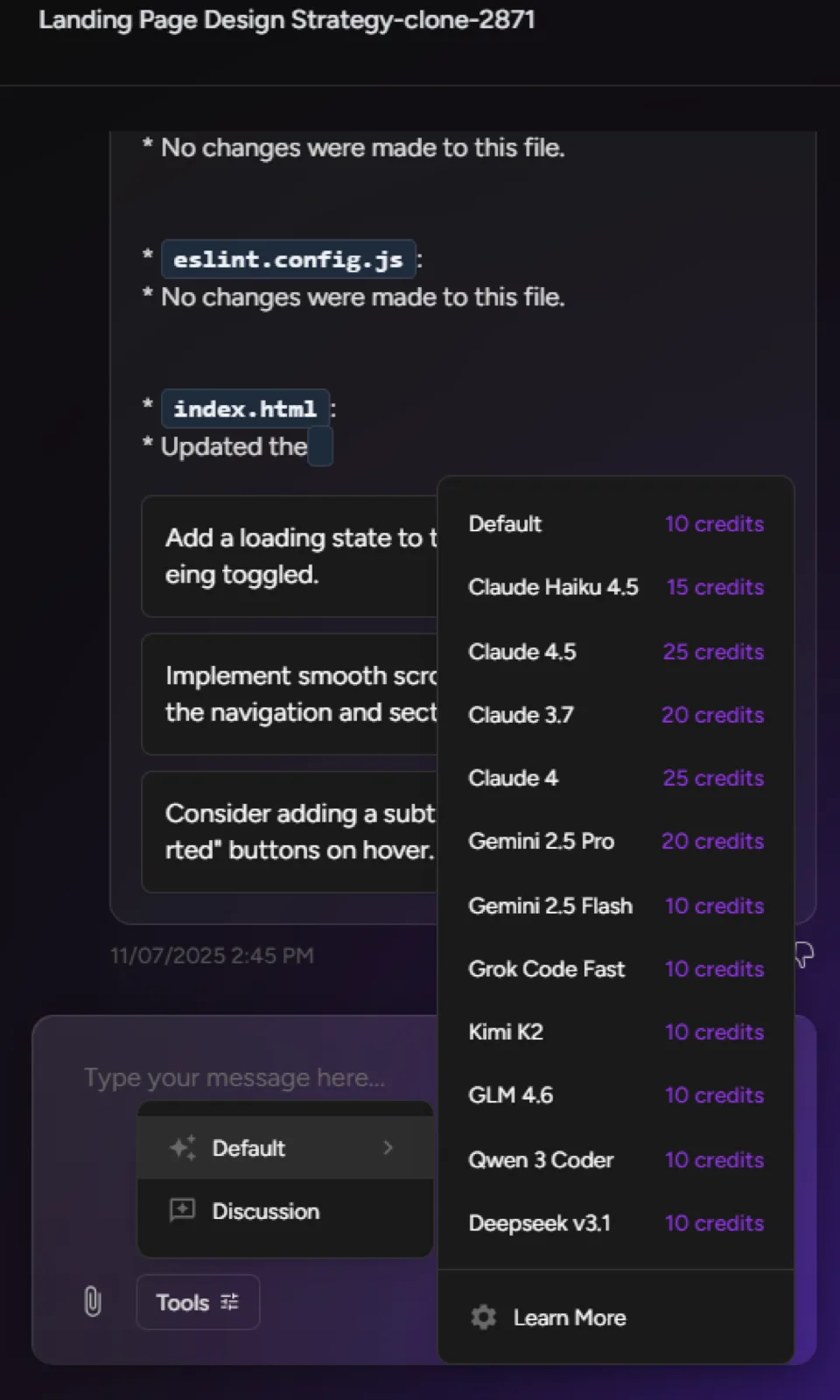
- Hover over "Default" to reveal the model options
- Click to open the Model Selector dropdown
2. Browse Available Models
- View all available models (Claude 4, Gemini, Grok, etc.)
- Each model displays its credit cost clearly
- See which models are optimized for specific tasks:
- Frontend design - Better for UI/UX and visual elements
- Backend logic - Optimized for functionality and code structure
- Complex reasoning - Ideal for sophisticated problem-solving
3. Select Your Model
- Click on any model to select it
- The change takes effect immediately
- You'll see the selected model displayed in the tools section
4. Learn More About Models
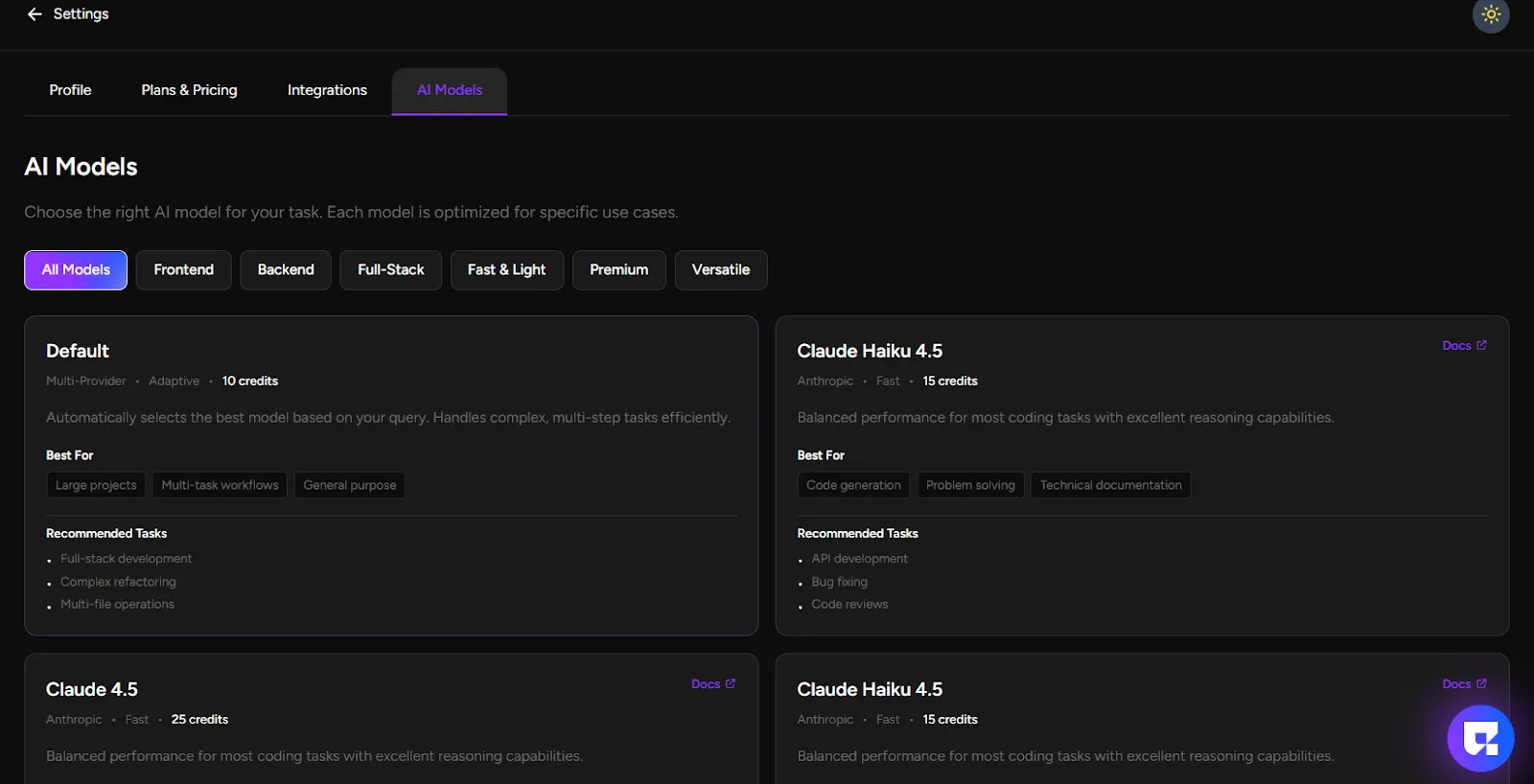
- At the bottom of the selector, click "Learn More"
- This takes you to the AI Models page under Settings
- Explore detailed information about each model's:
- Specific strengths and specialties
- Recommended use cases and tasks
- Performance characteristics
- Credit cost breakdowns
5. Experiment and Optimize
- Try different models for different types of tasks
- Note which models work best for your specific projects
- Balance credit costs with performance needs
Key Benefits:
- Total Control: Choose the exact AI capability you need
- Cost Optimization: Select models based on your credit budget
- Task Specialization: Match the model to your specific requirements
- Continuous Learning: We regularly add new models and capabilities
Pro Tip: Bookmark the AI Models page in Settings to quickly reference model strengths and costs as you work on different types of projects!
The Model Selector transforms Greta.sh from a one-size-fits-all tool into your personalized AI development partner, giving you precision control over every aspect of your building experience!